

While using the Codex IDE extension at work, I kept noticing a specific behavior. When the agent is about to run a command—something that affects files or the environment—it doesn’t just ask you to approve or decline.
There’s a third option: a text input that allows you to redirect it mid-task.
You can say: “Try this instead.” The agent adjusts without stopping.
I’d seen similar behavior in Claude’s web UI, so it’s not a Codex-exclusive thing. But seeing it consistently baked into the workflow made me curious about what the standalone Codex app could do beyond the IDE.

Then Codex started showing up everywhere—AI newsletters, dev Twitter, YouTube. It went from background noise to hard to ignore, whether due to a recent overhaul or just a tipping point in coverage (AI craze fluctuates daily).
Timing was good because I’d been pulling back from ChatGPT for a while. The quality of content generation has degraded. Even when I supply examples and references, the output comes back generic.
As someone who’s been through all the GPT variants the past few years, I can attest that this was the worst performance. Project context doesn’t stick the way it does in Claude, where source files stay referenced throughout the conversation.
It’s not a dealbreaker for every task, but it was enough to make me want to try something different.
So when the Codex app landed on the free tier, I decided to run a real test with two projects I actually care about: my Prompt Optimizer Chrome extension, which I want to refine and extend, and a non-code challenge—generate an 8-second launch video for my Flutter app, VersoID, using Remotion.
All of it without upgrading to a paid plan 😅
Spoiler: I didn’t get through either project. And that’s kind of the point.
What Is the OpenAI Codex App, and How Does It Compare to Tools Developers Already Use?
Before getting into the projects, I want to answer the question I had going in: What does the Codex app actually add?
Most of us are already using Claude Code, Cursor, Antigravity, or the Codex IDE extension itself.
Take me for example: I use Cursor and the Codex IDE extension for work. Then I use Antigravity for my own projects.
If we’re already using these tools, why in the world do we need yet another Claude-like hub?
It took some research and use to land on a clear answer because a lot of the content out there gets this wrong.
The “ChatGPT Copy-Paste Loop” Comparison Is Outdated
You’ll see posts or videos comparing Codex to “the old way of using ChatGPT,” where you’d ask for code, copy it into your editor, run it, debug it, go back, and repeat.
Newsflash: developers aren’t working that way anymore 🙂↕️
Most of us already have AI in the editor: Claude Code, GitHub Copilot, Cursor’s built-in model, or the Codex extension.
The real question isn’t Codex vs. old ChatGPT. It’s Codex vs. the tools you’re already running.
Codex vs. Claude Code vs. Cursor
Claude Code is a strong agentic coding CLI and IDE extension from Anthropic. It handles multi-file edits, autonomous task execution, and iterates well across complex codebases. So far, it surpasses Codex in VS Code Marketplace installs and user ratings. If you’re already using it, you’re in similar agentic territory.
Cursor is a VS Code-based IDE with AI woven natively into the editing experience. Many developers run Claude Code or Codex CLI inside Cursor’s terminal. It’s less either/or and more about which surface you prefer for the actual editing work.
Tip 💡
Antigravity is pretty much the same as Cursor with the exception of superior free tier capabilities and the power of Gemini long-context models.
Explore: Google Antigravity Explained: The New Way to Build Apps With Vibe Coding (2026)
The OpenAI Codex App Is Where It Gets Interesting
The same Codex agent runs across CLI, IDE extension, and the app. But the app adds things the other surfaces don’t:
- Parallel agents running in isolated worktrees
- Scheduled automations
- A full MCP plugin ecosystem
- In-app browser with annotation mode
- Image generation in the same thread
The IDE extension is built for precision work inside an open file. The app orchestrates work across an entire project, running multiple tasks simultaneously or handling outputs that aren’t code at all, like a launch video.
My own way of thinking about it: the extension is for focused editing, the app is for directing.
Relative to ChatGPT, I’ve heard the app described as: if ChatGPT is Facebook (passive, you consume), Codex is more like Instagram (action-oriented, built for doing).
I can see that 💁♀️
And unlike something like Manus AI—which is also making rounds online as a general-purpose agent across workflows—Codex is built specifically for software development and leans hard into the developer toolchain.
Different tools for different jobs.
Getting Started with Codex for Free
Here’s how to get Codex and which version to choose, because it sounds like they all do the same thing—so confusing.
Installing the App
The download and install process is smooth. Open it, sign in with your ChatGPT account, and you’re ready. There are no API keys, no config files, and no terminal required.
Free and Go users get roughly 10–30 messages per 5-hour window. Compare that to 30–150 on Plus. That’s a real ceiling, and I’ll be straight about where I hit it throughout the post.
My strategy for making it work: focused sessions, tight prompts, one feature at a time. I’ll flag specific tips as we go.
Hey! The free tier access is a limited-time promo as of this writing. Worth checking the current terms before you plan anything around it!
App, IDE Extension, or CLI: Which One Do You Actually Need?
Worth sorting out before you start, since all three share the same usage limits, and it affects how you budget your messages.
Use the Codex app when you’re running multiple tasks in parallel, working on non-code outputs (like a video or design assets), or want access to the full plugin ecosystem and automations. It’s also the right call when you want to orchestrate a project without keeping your editor open.
Use the IDE extension when you’re doing focused editing work, like fixing a bug, refactoring a function, or reviewing a diff. The extension automatically sees your open files and selected code, so your prompts can be shorter and the results more precise. For everyday coding, this is usually the faster path.
Use the CLI when you need Codex to run headlessly, like inside a GitHub Action, a build pipeline, or a cron job. No editor, no GUI, just the agent in your terminal alongside Git and Docker.
For this post, I’m using the app for both projects, not because it’s always the right choice for code work, but because I specifically want to test the plugin integrations and the parallel thread features that only exist in the app.
Note 📍
Usage limits are shared across all three surfaces. If you’re running the IDE extension during work hours (which you shouldn’t because your employer should provide you access, FYI), those messages come out of the same 5-hour window as your app sessions. So, for all crafty thinkers out there: you cannot hit your limit via the app, then jump to the IDE, then hop onto the CLI and reset.
A Quick Tour of the Codex App Interface
Open the app, and you’ll see three sections in the sidebar worth knowing about.
Projects
You point Codex at a local folder, and it opens a Work Tree—a live view of your file structure that the agent can read, edit, and write to.
The items listed under the project name are chats, which represent parallel threads that let you run separate tasks (like building a feature and creating marketing materials) within the same project context.
Codex doesn’t bleed context between different projects, so multiple projects stay isolated.
If you have the IDE extension installed, the app and extension can sync when you’re in the same project.
With Auto Context on, the app tracks the files you’re actively viewing in your editor, so you can reference them in app prompts without tagging them manually.
The app becomes the orchestration layer; the editor stays the precision tool.
Plugins (MCP)
Plugins connect Codex to external tools via MCP—Model Context Protocol, an open standard that lets AI agents call actions in third-party apps.
Connect Google Sheets, and Codex can read and write spreadsheet data. Connect Canva, and it can generate designs. GitHub, Figma, Notion, Linear—they’re all in the marketplace.
I’m not connecting my calendar or email. I’m not comfortable giving an agent access to anything personal. But for project-specific tools like Google Sheets, I’m open to it. You decide your own line.
Tip 💯
Every active plugin adds context overhead to every message. On the free tier, only keep plugins connected that you’re actively using in that session. Think of it like Chrome extensions: the more you have running, the more memory is consumed (without you “doing” anything).
Automations
Automations let you set up recurring tasks such as pulling from an API every morning, running a code review on new commits, and generating a weekly summary. You set the schedule, the prompt, and whether it runs in a dedicated worktree or your project directory.
Before you get excited: automations consume your message quota just like manual prompts.
Each run counts. On the free tier, a few automations could eat through your 10–30 message window before you’ve typed a single prompt yourself.
Tip: Skip automations on free until you’ve tested the workflow manually and know exactly what you’re scheduling. Get the skill right first, then consider putting it on a timer!
Project 1: VersoID Launch Video — Generating a Product Video Without Touching an Editor
VersoID is a Flutter app for iOS and Android. Think Linktree, but for multiple personas instead of one static page. You build cards for each role you play—a networking card for job applications, a product card for your startup, a writing card for your blog.
The gist: Multiple digital business cards with QR sharing and analytics. Same person, different contexts, all in one place.
I’ve never made a launch video for it and wasn’t planning to any time soon. The tools that produce good ones, like After Effects, Premiere, or professional motion design, take time and skill I’d rather spend elsewhere 😬
So I wanted to see if Codex and Remotion can generate one without me touching an editor at all.
Note 💬
Remotion is a React framework for creating videos programmatically. You write React components that describe what appears on each frame, and Remotion renders them into an MP4. So yes, it is technically code which means an AI agent can write it.
Reading the Codebase Before Building Anything
I gave Codex access to the VersoID folder and was immediately surprised.
There was a CLAUDE.md at the root—a remnant from my recent testing of Claude Code with Ollama (it didn’t go too well)—and Codex popped up asking if I wanted to carry its instructions over into AGENT.md, which is the format Codex uses.
Which I did, because yes, please use the context from my existing workflow files and carry it over without me having to think about it 💯
After that, one instruction: read the code, don’t touch it. The goal was for the video to come from an actual understanding of the product, not just whatever I described in a prompt.
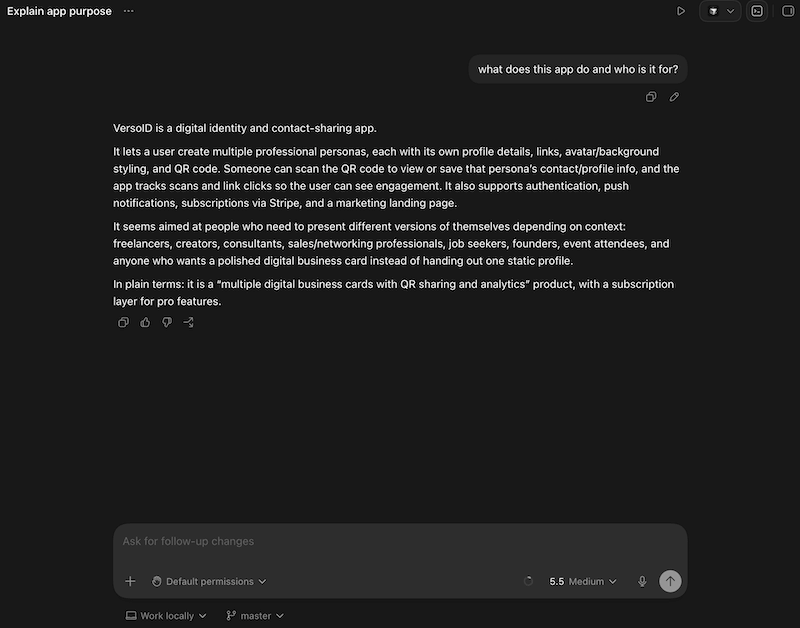
Codex nailed the description and surfaced some genuinely on-point marketing angles for the app.
Tip 👇
Give Codex a read-only pass first—”what does this app do and who is it for?”—before sending the video generation prompt. That way you’re not spending video-generation messages on codebase exploration.
Forking the Thread for the Video
With the codebase read, I forked the conversation. One thread stayed open for any remaining app refinements or supporting marketing materials.
The other went to the video prompt:
“Generate an 8-second product launch video using Remotion. Motion graphics, Instagram format, based on what you know about VersoID.”

What Codex Actually Generated
It took two tries. The first version leaned generic, and I suspect partly because my initial prompt was too brief. The motion graphics landed, but they didn’t represent VersoID accurately.
For the second pass, I gave it more to work with:
“Replace the generic card stack with a phone-based product surface, match the app’s dark #050505 canvas, glass panels, circular avatars, large card radii, title pills, QR share sheet, and scan analytics. Smooth the beat transitions so the sequence flows: logo → persona card → QR share → analytics → CTA. Also, generate a YouTube version alongside the Instagram one.”
The second version was noticeably better.
The Real Test: Zero Manual Editing
The goal was something promo-ready without opening an editor that either works or doesn’t.
I partly got there. The second run isn’t perfect—spacing and placement still need some follow-up. But once those minor tweaks are in, it’s something I’d actually use.
Going from zero to eighty percent in two prompts (that could’ve been one had I structured it better from the start) is a win.
It’s also an honest picture of what the free tier can do on a project like this: one solid pass, maybe one refinement, and you’re at the limit.
Project 2: Prompt Optimizer — How Far Can You Actually Get Before the Wall?
My Prompt Optimizer is a Chrome extension that refines AI prompts. You type a question or highlight text in any text area, and it rewrites your input into something cleaner and more precise. It supports both cloud and local AI models, depending on the user’s privacy preferences.
It works. But the UI needs a refresh, and I want to add two libraries:
- Prompt library so users can define custom instructions to refine prompts beyond the built-in defaults.
- Template library so users can manage reusable AI actions and save optimized prompts.
This is where the free tier reality really shows up.
Letting Codex Read the Codebase First
Rather than explaining the extension from scratch, I pointed the app at the project folder and let Codex figure out the structure on its own. Chrome extensions have a recognizable shape—manifest, background scripts, popup, content scripts—so there’s no need to walk through what it’s looking at.
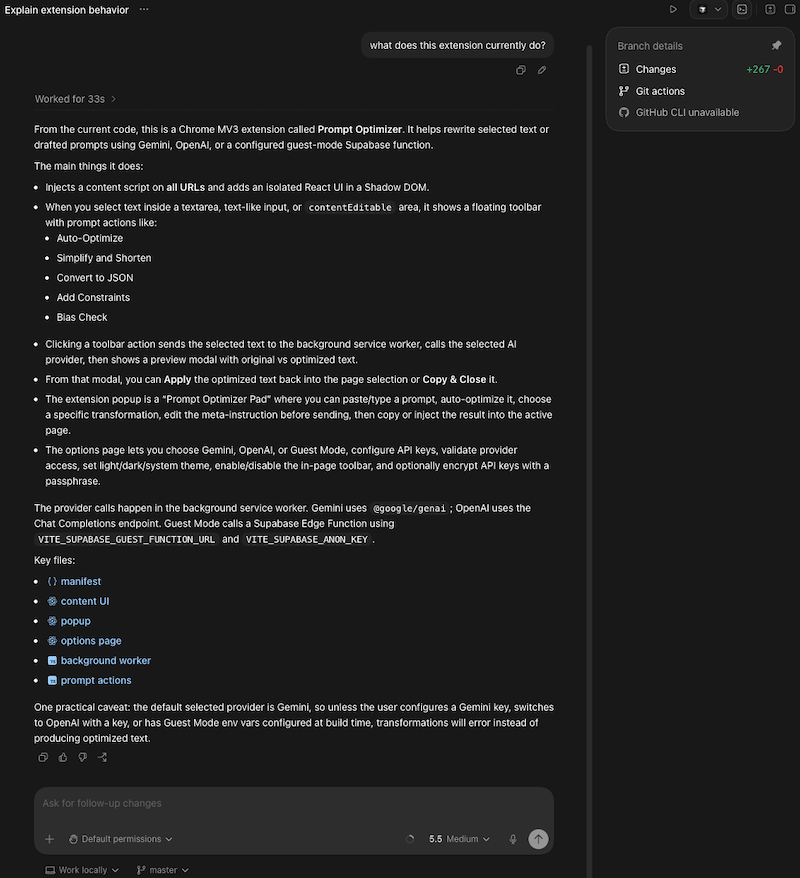
First impression: it looks a lot like the agent managers in Cursor and Antigravity. It’s immediately familiar.
- Diff changes across files (exactly like Antigravity’s agent manager)
- A run action
- Git branch details
- Terminal access
Overall, a streamlined dev experience right out of the gate.
Tip 👇
Don’t open a project and immediately fire off a big prompt. Let Codex index first, then ask something focused like “what does this extension currently do?” One message confirming its understanding can save several messages of course-correcting later.
Fork into Local: Running Two Threads at Once
The feature I was most curious about testing: Fork into Local. It splits a conversation into two parallel threads while keeping the project context intact in both.
I ran two threads:
- One for feature planning, follow-ups, and detailed specifications
- Another for implementing the first feature—the custom prompt library
Both threads had a base of the app structure that Codex just surfaced. Same codebase, different directions, simultaneously.
The forking works cleanly; context is preserved in both threads. Planning and implementation run in parallel with no cross-contamination.
The Steer Dropdown in Action
Mid-build, Codex was trying to run tests, including some npm build attempts that kept hitting sandbox environment limits and burning through my free quota in the process. I used the Steer dropdown to redirect.
My response: “No, I’ll handle the testing. If you’re done with the implementation, confirm and I’ll report back.”
The agent adjusted. Instead of continuing to spin on test runs that it couldn’t complete, it confirmed the implementation state and handed control back.
That’s the redirect-instead-of-reject behavior from the IDE, showing up in the app. When something is burning a quota without moving the work forward, you should be able to actively steer (not interrupt, there’s a meaningful difference) without waiting for the agent to figure out it’s stuck.
And Then the Wall
As soon as I finished planning and moved into actual code work on the prompt library, this showed up:
“You’ve hit your usage limit. Upgrade to Plus to continue using Codex.” 😢
Six to seven days until the free quota renews.
To be clear about what I actually got through: codebase read, planning thread, feature spec, one forked implementation thread started.
The first feature wasn’t complete. I was at the starting line of the build when the window closed.
The Paper Plugin — What It Takes to Set It Up and What to Expect
Paper is a canvas design tool that integrates with Codex via MCP, but it works nothing like the other plugins in the marketplace. It’s not listed in the Codex plugin search. You have to go outside Codex entirely to get it running.
Here’s the actual setup process:
- Download and install the Paper desktop app separately
- Open Paper and create a new file—this is where Codex will draw
- In Codex settings, manually configure the Paper MCP server connection (Settings → MCP servers)
- Keep the Paper desktop app open during your session; if it’s closed, Codex will prompt you to open it before it can write anything
Once it’s running, the idea is that Codex draws new screens visually as it works. So you’re reacting to something you can see rather than describing what you want and hoping it lands.
Note: Paper MCP has its own rate-limited free usage, separate from your Codex quota. Once you exhaust it, it renews in 5 days. Two separate free quotas to manage. Keep that in mind.
I connected it to a fresh free session after my Prompt Optimizer quota ran out, specifically to test the UI redesign workflow. The setup itself was fine once I understood it wasn’t a one-click plugin install. But working through the redesign burned through the entire new session in about three prompts.
The results were underwhelming for the effort. My first prompt asked for a redesigned popup layout—minimal, light/dark themes, with a prominent prompt input and a collapsible template library. What I got was essentially a closer reproduction of what already exists, not a redesign.
Paper was reading the current state and doing a polish pass instead of a redesign.
If you want to push it further, try being more directive about breaking from the existing design.
Simply providing the following redesign direction helped Codex understand my request much better:
“I want to redesign so that it gives a premium aesthetic similar to Notion design aesthetic.”
The key difference: tell it what the new layout is, not what you want it to do. It responds better to structural description than to intent.
The Free Tier Ceiling: An Honest Picture
Here’s the reality of one free quota window across these two projects:
1. VersoID launch video
Two prompts. The first pass was too generic since I hadn’t given enough detail. The second pass, with specific visual direction, got me to about 80% of something usable. Minor spacing and placement tweaks still needed, but the foundation is there.
For a non-developer task being done entirely in code, that’s a reasonable result.
The catch: two passes is roughly where you max out.
2. Prompt Optimizer
Got through codebase reading, planning, and the start of one forked implementation thread for the first feature. Hit the wall before the feature was complete, right as the actual build work was beginning. The quota wasn’t enough to finish even one feature.
Paper plugin: Connected it on a second free session specifically to test. Three prompts in, the session was gone.
One project got to roughly eighty percent of something usable. One didn’t finish a single feature. A third session went to a plugin test that produced mediocre results.
The hard truth about the free quota is that it resets every 5 hours in theory, but in practice, you’re looking at 6–7 days until it refreshes.
That’s not a workflow you can build around. It’s enough to evaluate whether Codex earns a place in your stack.
It’s not enough to actually use it as part of that stack to determine if it’s better than one of the many other options out there.
Managing Costs: How to Stretch Your Free Tier
This all matters because AI tooling costs compound. Claude Code, Cursor, Antigravity, ChatGPT Plus—each one individually is reasonable. Together, if you’re trying to maintain access to more than one or two, it’s a real monthly number.
Every new tool asking you to upgrade before you can finish a single feature has to earn that ask against what you’re already paying elsewhere.
A few things that help stretch the free quota:
- Switching to the mini model for simple tasks (renaming, reformatting, small style changes) burns significantly fewer credits than the full model. Save the full model for architecture and complex builds.
- Disconnecting idle plugins between tasks reduces context overhead on every message. If you’re done with a plugin for the session, disconnect it before moving on.
- Planning before you open the app is probably the highest-leverage thing you can do. The free tier punishes exploration. Have your feature defined clearly before you start a session.
What Changes When You Stop Writing and Start Directing
A couple of takeaways from running two projects through this:
1. The biggest shift isn’t speed—it’s where your attention goes.
I wasn’t writing code or managing files. I was making decisions: what should this feature actually do, is this the right direction, what’s the tradeoff here?
That’s not less work. It’s different work.
The agent handles execution; you handle judgment.
2. The steer-instead-of-stop behavior shows up everywhere once you notice it.
When something is heading the wrong direction or burning quota without progress, you redirect it rather than interrupt it.
That changes how the collaboration feels in a way that’s hard to describe until you’ve used it.
It’s less like correcting a tool and more like adjusting course mid-task.
What Codex Does Well (And Who It’s Really Built For)
Forking conversations was a really useful feature since it allows running planning and implementation in parallel without losing context. It’s something I don’t take for granted.
But, it’s also worth noting that Cursor rolled out a similar forking feature in a recent update, so this won’t stay exclusive for long. Most of the other tools will follow.
In terms of output quality, nothing I generated marked itself as significantly better than what I’ve produced with other models.
The video was good; the code planning was solid. However, there was no moment when I thought that I couldn’t have gotten this anywhere else.
The clearest value proposition I walked away with is that Codex feels like a natural-language agentic UI built on top of an IDE. You can open a connected editor and see your source files if you want to, but you don’t have to. You direct in plain English, the agent executes, and you review the diff.
For someone vibe-coding or not yet comfortable living inside an editor, that layer of abstraction is genuinely useful.
For developers already at home in the IDE, it’s a different interface to the same work.
Whether that’s worth the subscription cost is an honest question with a personal answer.
If you’re already paying for Claude Code, Cursor, and Antigravity, Codex has to offer something materially different to earn a fourth slot. Based on my free tier testing, I’m not convinced it does—yet.
It’s a Wrap
Here are my thoughts after two projects, three sessions, and more “usage limit” prompts than I wanted to see.
Codex is interesting. It’s not revolutionary—at least not yet, and not for developers who are already living inside their tools.
The output quality is solid, the forking is useful, and the steer-instead-of-stop behavior is well thought out. But none of it added up to a “where has this been all my life” moment.
Nothing I built here couldn’t have come from the tools I’m already using.
What Codex does feel like is an IDE with a natural language layer on top that enables anyone uncomfortable in an editor to get real work done.
If you’re vibe-coding, still finding your footing, or just want to direct rather than drive, that framing makes a lot of sense. For that audience, Codex might be the right fit.
For developers already at home in Cursor or Antigravity, the real question is whether it earns a slot alongside what you’re already spending. Based on my free tier test, I’m not there yet. Maybe Plus changes that response, but the free tier alone didn’t give me enough runway to find out.
I say, try it anyway. One session, one focused task, one project you already have something to show for. That’s all it takes to know whether it works for you.
As always, feel free to drop your thoughts on Codex if you’ve tried it or you’re actively trying it right now.
Find and follow THT projects and releases on our product page. Most of them are free and the result of many of our blog posts.
That’ll be it for this post. I’ll see ya on the next one!


