

Have you ever had someone hand you a performance report from an expensive SEO tool—something like “your LCP is 4.8 seconds” or “you have 12 accessibility violations”—and had zero idea what to do with it or where to even start looking?
Or maybe you’re on the flip side: you’re a developer, and the SEO team keeps asking you questions about the site, but there’s no shared tool between you.
They’re in their platform, you’re in your editor, and somewhere in the middle, context gets lost 😵💫
Turns out there’s a free, no-install, always-updated suite of diagnostic tools living in a place you probably already have open every day. Chrome DevTools.
Most people know DevTools for checking element styles or reading JavaScript errors. But if that’s where your usage stops, you’re skipping past a serious toolkit for:
- technical SEO auditing
- performance measurement
- accessibility testing
That’s available to anyone with a Chrome browser, without a subscription, without waiting for a crawler to finish.
This post is for anyone who wants to understand what’s actually happening on a web page, whether you’re an SEO specialist, a developer who handles site health, a marketer debugging a campaign page, or someone who wants to stop feeling like these tools are out of reach.
By the end, you’ll know which panels to use, why they matter for SEO and accessibility specifically, and have three practical workflows you can try immediately.
Let’s get into it 👇
First, a Quick Note on What This Post Is (And Isn’t)
If you’ve already read the general Chrome DevTools overview post, you’ll know we covered a lot of ground there with the Sources panel, debugging workflows, the AI assistant, Local Overrides, and more.
This post has a different focus. We’re zooming in on three specific use cases:
- Technical SEO auditing: making sure search engines can find, crawl, and understand your content
- Website performance optimization: diagnosing what makes pages slow, specifically around Core Web Vitals
- Accessibility testing: finding issues that prevent real people from using your site
There will be some overlap with tools we’ve touched on before (Lighthouse, Network, Coverage), but we’ll look at them through a completely different lens here.
Opening DevTools: The Quick Version
Three ways in:
- F12 (Windows/Linux)
- Ctrl+Shift+I (Windows/Linux) or Cmd+Option+I (Mac)
- Right-click anywhere on the page → Inspect
And the one shortcut worth memorizing for everything in this post: Ctrl+Shift+P (Windows) or Cmd+Shift+P (Mac).
That opens the Command Menu, a search bar that surfaces every DevTools panel and action. If you ever need to find something mentioned here, start there.
Part 1: Technical SEO Auditing
Technical SEO is the part that doesn’t make it onto keyword strategy decks but quietly determines whether your content gets found at all.
Search engines need to physically access, parse, and understand your pages before any of the content matters.
A site can have the best articles in the world and still struggle to rank if the underlying setup has problems—blocked resources, missing canonical tags, JavaScript that only renders in the browser, or pages that behave differently for bots than for people.
I’m not saying Chrome DevTools replaces a full crawler like Screaming Frog for site-wide audits. But for diagnosing a specific page? It’s fast, free, and surprisingly deep.
Seeing What a Search Engine Actually Sees
Something that surprises people is that what you see in your browser is not necessarily what Google sees.
When you load a page normally, your browser does a lot. It executes JavaScript, fills in dynamic content, loads fonts, runs analytics, and shows personalized recommendations.
Googlebot does too, eventually. But there’s often a delay between when Googlebot first fetches a page and when it fully renders the JavaScript. During that gap, only the raw HTML is indexed.
So the question worth asking is: What does the page look like without JavaScript?
To check:
- Open the Command Menu (Ctrl+Shift+P)
- Type “Disable JavaScript” → press Enter
- Refresh the page
Chrome shows a small warning icon in the address bar when JavaScript is off.
Now look at the page. Does your main content still show up? Do your navigation links still exist? Are your headings visible?
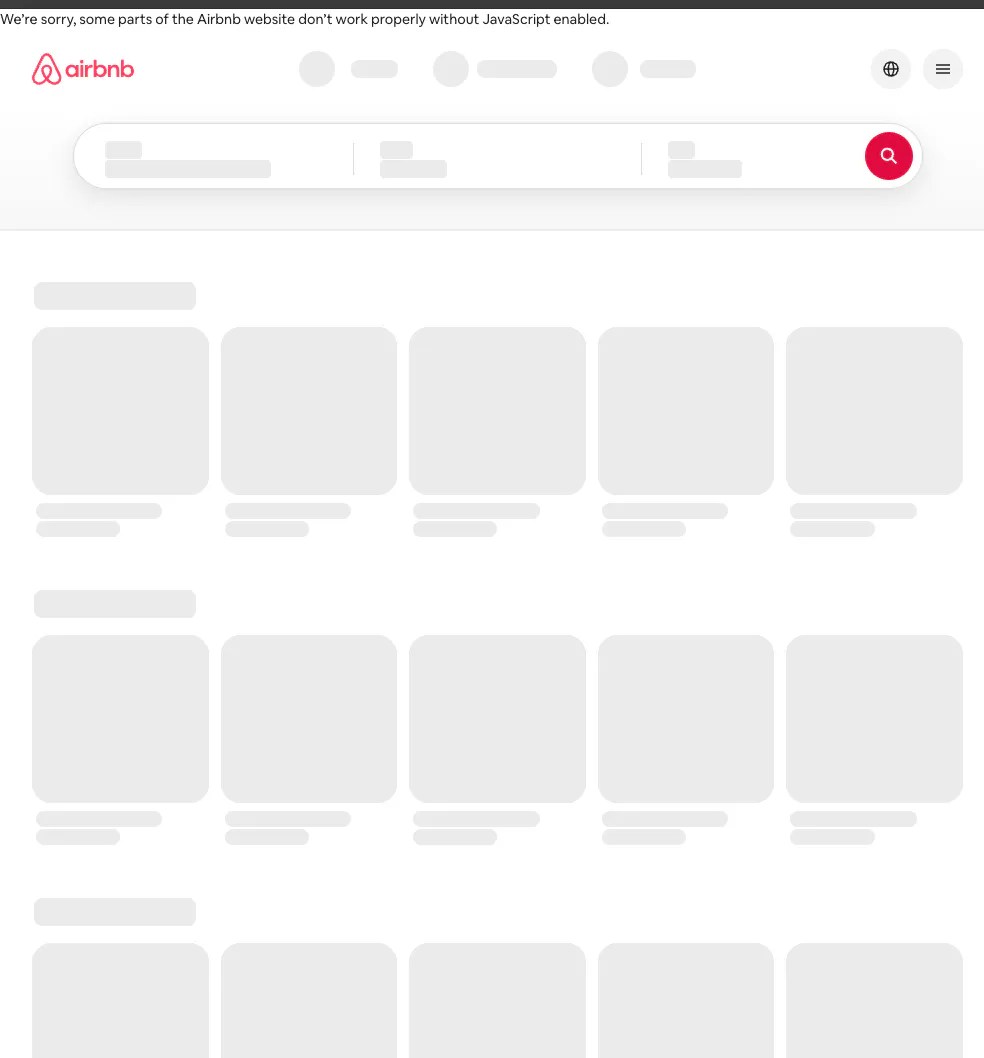
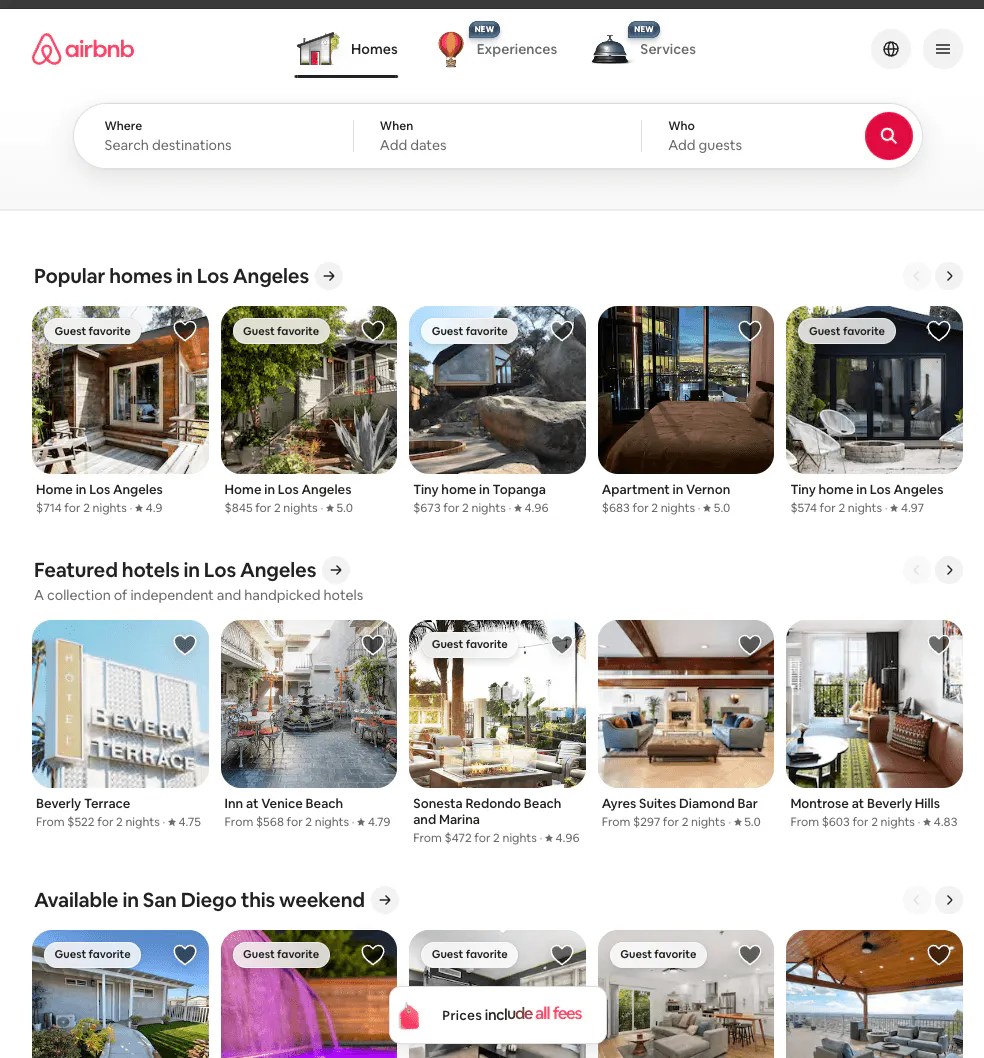
If important content, links, or navigation disappear, that’s a signal that Googlebot may not be indexing it on the first pass.
That’s an SEO risk worth flagging 💁♀️
Note 👀
Googlebot does render JavaScript eventually, but there’s no guaranteed timeline for when that happens. Pages that rely entirely on client-side JavaScript for core content can have delayed or incomplete indexation.
To re-enable JavaScript: open the Command Menu again and select “Enable JavaScript.”
A Note on Static Sites and JavaScript Frameworks
You might be thinking: “Wait, but I’m using Gatsby—it generates static HTML at build time. I’m fine, right?”
For a long time, there was a widely held belief in the SEO world that any JavaScript-heavy site would struggle with indexation, because Googlebot would crawl the page before the browser had a chance to render the JavaScript.
That concern was very real for pure client-side rendered apps (think a plain React SPA that ships an empty <div> and populates everything at runtime).
Frameworks like Gatsby and Next.js significantly changed this story. Gatsby, in particular, pre-renders all pages to static HTML at build time.
So when Googlebot arrives, there’s already a fully populated HTML file waiting, no JavaScript rendering required for the initial crawl. That’s real SEO-friendly behavior.
But here’s where the nuance lives: Gatsby sites still hydrate into a React app in the browser after that initial static load.
During that hydration process, you can run into hydration errors, which are mismatches between the server-rendered HTML and what React expects to render on the client.
If your metadata (title tags, canonical tags, open graph data) is being set dynamically, there can be edge cases where something doesn’t land in the initial HTML the way you expect.
The DOM vs. View Source check covered in the next section is exactly the tool you’d use to catch that!
Comparing what’s in View Source against the live Elements panel is how you confirm that your statically generated HTML is actually carrying what you think it is 💁♀️
Simulating Googlebot’s Visit: Why Your Server Might Behave Differently for Bots
Every browser and bot identifies itself to the server via a User-Agent string. It’s a short piece of text sent with every request that essentially says “I’m Chrome on Windows” or “I’m Googlebot Smartphone.”
This is where things get interesting for SEO, so let’s talk about why this matters before getting to the how.
Why Would a Server Serve Different Content to a Bot?
You might be wondering why a server would ever show something different to Googlebot than to a regular visitor. A few real scenarios:
- WordPress caching plugins are one of the most common culprits. Many caching setups serve different cached versions of pages based on User-Agent. Desktop users get one version, mobile users get another, and bots sometimes get something else entirely, especially if the cache was built with a specific User-Agent in mind.
- Personalization and geo-targeting can mean that certain content only shows for logged-in users, specific regions, or specific device types. If the logic that drives this is server-side, Googlebot might never see it or might see a stripped-down version.
- Security and bot-blocking rules set up at the server or CDN level can accidentally catch Googlebot. A misconfigured Cloudflare rule, a security plugin, or an overly aggressive bot filter can block or redirect legitimate crawler traffic without anyone realizing it.
- Plugins serving different markup to crawlers is also more common than you’d think. Some SEO plugins, schema injection tools, or A/B testing setups conditionally render different HTML for bot traffic.
I’m telling you all this because it brings us to a concern known as cloaking. It’s the practice of showing different content to bots than to users.
Google takes this seriously when it’s done to manipulate rankings 😒
But a lot of the time, cloaking isn’t intentional. It’s a WordPress plugin conflict, a caching misconfiguration, or a server rule that nobody remembered setting.
How to switch your User-Agent to Googlebot
- Open DevTools
- Click the three-dot menu (top right of DevTools) → More tools → Network conditions
- In the Network conditions panel, uncheck “Select automatically” under User agent
- From the dropdown, select Googlebot (there are Smartphone and Desktop variants—test both)
- Reload the page
Now you’re making requests that identify as Googlebot. The page that loads is what Googlebot would see, at least from a User-Agent perspective.


What to look for:
- Does a completely different page load? That’s the cloaking scenario mentioned above.
- Does a redirect fire that you weren’t expecting?
- Do any resources fail to load?
- Is your schema markup, canonical tag, or meta description still present?
Tip 👀
When you’re done testing, go back to Network conditions and re-check “Select automatically” to restore your normal User-Agent. DevTools settings apply only to the tab you’re testing in and reset when you close it.
Checking HTTP Status Codes and Response Headers
Every request a browser makes to a server comes back with a status code:
200means everything’s fine301means the URL has permanently moved404means the page wasn’t found503means the server is temporarily unavailable
These matter enormously for SEO. A page returning 404 can’t be indexed. A 301 tells Google to transfer link equity to the new URL.
One worth knowing specifically: a soft 404. This is when a page looks like an error to the user (“Page not found” or “No results”), but the server still returns a 200 OK status code.
Google sees a 200 and thinks the page is valid, potentially wasting crawl budget on empty content. It actually happens more often than you’d think 😒
The most common culprits are:
- WordPress internal search results for queries that return nothing (your theme may display “No posts found” but respond with
200) - empty tag or category archive pages
- a custom 404 page that was styled and linked correctly, but never actually told the server to return a
404status code
Tip: It’s easy to build a beautiful “page not found” design and forget to wire up the HTTP response correctly. This is a great time to verify yours!
How to check status codes
- Open the Network panel
- Hard refresh the page (Ctrl+Shift+R or Cmd+Shift+R)
- At the top of the Network panel, click Doc to filter to just the page document
- Click on the main URL in the list
- Under the Headers tab, find “Status Code”
While you’re in the Headers view, scroll down and look for:
link rel="canonical"in the page’s<head>(verify this in the Elements panel too) — this tells Google which version of a URL is the “official” onex-robots-tagin response headers — a server-level directive that can block indexing even without a meta robots tag in the HTMLcontent-type— confirms the page is being served astext/html, not accidentally as plain text or something else
The x-robots-tag, unlike the <meta name="robots"> tag you’d add inside your HTML is a directive that lives in the HTTP response headers—meaning it’s set at the server level. You wouldn’t see it in your code editor or CMS, but it can still tell Googlebot not to index the page.
If you’re puzzled about why a page isn’t getting indexed despite looking fine in the source, this header is one of the first places to check.
Tip 🔥
You can add the “Initiator” column to the Network panel by right-clicking any column header and selecting it. The Initiator column tells you exactly which script or resource triggered each network request. It’s useful for tracking down third-party scripts causing unexpected calls or slowing down load time.
The DOM vs. View Source Check
This one is simple but surprisingly powerful for SEO diagnosis. There are two ways to look at a page’s HTML:
- View Source (Ctrl+U in a new tab) shows the raw HTML that came from the server before any JavaScript ran
- Elements panel in DevTools shows the live DOM after JavaScript has executed and potentially modified the page
Tip 👇
For SEO purposes, what’s in View Source is what a server-side crawl will see first. What’s in the Elements panel is what the fully rendered version eventually shows.
If your <title> tag, <meta description>, canonical link, or <h1> only appear in the Elements panel and not in View Source, they’re being added by JavaScript after load. This means Googlebot may not have them on the initial crawl.
How to do this check quickly:
- Open DevTools → Elements panel
- Use Ctrl+F to search the DOM for the element you’re checking (try
canonical,og:title,h1,meta name="description") - Open a new tab → press Ctrl+U to view the raw page source
- Do the same search in View Source
If an element exists in the Elements panel but not in View Source, it’s JavaScript-rendered and something you should flag.
I’ve used the comparison between View Source and the Elements panel to troubleshoot hydration errors in static builds before, and it’s a great way to start debugging something that can otherwise be intimidating.
You’d be surprised how many hydration errors this relatively simple comparison reveals!
Running the Built-In SEO Audit with Lighthouse
Once you’ve done your manual checks, Lighthouse can give you a scored SEO audit in about 30 seconds.
- Open the Lighthouse panel (look for it in the top row of DevTools tabs)
- Check SEO (uncheck others if you only want SEO results)
- Click Analyze page load
Lighthouse checks for things like:
- Missing or duplicate
<title>tags - Missing or poorly written meta descriptions
- Images missing
alttext - Links that aren’t crawlable
- Tap targets too small on mobile
- Pages blocked by robots.txt
When you get the report back, you’ll see flagged issues organized by category. Each one includes the specific element or URL that triggered it, a brief explanation of what’s wrong, and a “Learn more” link to Google’s documentation.
If you haven’t used Lighthouse before, it’s worth knowing that the report isn’t a final verdict on your SEO health.
Instead, think of it as a snapshot of one page, measured in lab conditions on your device. It won’t catch everything, and the documentation links it provides are intentionally general. They explain the what but rarely tell you why something is happening on your specific site.
To tackle the why, use the report as a starting checklist and then investigate the flagged elements in the Elements panel or Network tab to understand the actual cause.
Note: Lighthouse scores are different from the real-user field data Google uses for ranking. They’re excellent for catching specific technical issues on a specific page, but don’t treat the score itself as a ranking signal.
Part 2: Website Performance and Core Web Vitals
This is where things get very practical for rankings because Google uses a set of three metrics called Core Web Vitals to measure real user experience. These are a ranking factor.
As of 2026, the three Core Web Vitals are:
- LCP (Largest Contentful Paint): How long does it take for the biggest visible element on the page to load? Good = under 2.5 seconds
- INP (Interaction to Next Paint): How quickly does the page respond when someone clicks, taps, or types? Good = under 200 milliseconds
- CLS (Cumulative Layout Shift): Does content jump around as the page loads? Good = under 0.1 (a score, not a time)
Slow LCP means users stare at a blank or partially loaded page.
Bad INP means buttons feel unresponsive.
High CLS means users click the wrong thing because the layout shifted under their fingers.
Chrome DevTools can measure all three directly.
Related: How To Make Auditing Your Website In Real-Time Easy
The Performance Panel: Your Core Web Vitals Lab
I’ll be honest, the Performance panel looks intimidating the first time you open it. It’s a wall of timelines, color bars, flame charts, and metrics that seem like they’d need a manual just to understand.
But you don’t need to read all of it. All you need to know is where to look for the three things that matter most.
The panel records a session of your page loading and produces a timeline of everything that happened: what loaded, when it rendered, when JavaScript executed, and where things got slow.
Think of it less like a dashboard and more like a DVR recording of your page’s birth.
You can scrub through it, zoom in, and click on specific moments to understand what was happening at that exact point.
How to run a basic recording
- Open the Performance panel
- Click the circular record button, then reload the page manually—or click the ⟳ (Reload and start profiling) button to have DevTools handle it cleanly
- Let the page fully load
- Click Stop
After it processes (this takes a few seconds), the panel fills in.

Here’s what to focus on for Core Web Vitals:
- LCP is marked with a dotted vertical line in the timeline. If you hover over it, a tooltip tells you exactly which element the browser identified as the Largest Contentful Paint (usually your hero image, a large heading, or a key background image). That element is your LCP target. If you want to improve LCP, that specific element is where you start by asking: Is it too large? Is it loading from a slow origin? Is it being blocked by something earlier in the load?
- CLS shows up in the Experience track as purple diamonds. Each diamond is a layout shift event. Click one, and the Summary panel at the bottom shows you which elements moved, and by how much. This is much more precise than the Layout Shift Regions overlay we’ll cover shortly. I’d use the overlay to spot shifts, and the Performance panel recording to diagnose them.
- INP requires you to interact with the page during the recording. Record, then click buttons or fill out a form, then stop. Interaction events show up in the timeline, and you can click them to see how long the browser took from input to next paint.
Tip 💡
Before recording, throttle your CPU to simulate a real device. If you have a fast machine, your results won’t reflect what an average user on a mid-range phone actually experiences. In the Performance panel, click the gear icon (⚙) → set CPU throttling to 4x slowdown.
Seeing Layout Shifts Live: The Rendering Tab
The Performance panel is great for detailed post-recording analysis. But sometimes you just want to watch layout shifts happen in real time as the page loads.
The Rendering tab handles that.
How to enable Layout Shift Regions
- Open the Command Menu → type “Rendering” → select “Show Rendering”
- The Rendering tab appears at the bottom of DevTools
- Check Layout Shift Regions
- Refresh the page
Any element that unexpectedly shifts position during load is highlighted in purple. You’ll see flashes of color on the page as it loads.
This answers the “I know my CLS score is bad, but what is moving?” question without hunting through a timeline. With the overlay active, you see it with your own eyes in real time.
Some common culprits for high CLS include:
- Images without defined width and height attributes since the browser doesn’t know how much space to reserve, so it shifts surrounding content when the image loads.
- Ads or dynamic content injected above existing content, especially late-loading ad slots that push everything down.
- Cookie banners or popups that load after the initial render and push content around.
- Web fonts, when the fallback font renders first, and the web font loads with different letter-spacing or line heights.
Tip 🤓
Web font CLS is something a lot of developers run into without realizing they can prevent it. The fix is thefont-displayCSS descriptor. Settingfont-display: optionalorfont-display: fallbacktells the browser to either use the fallback font permanently if the web font doesn’t load in time, or show the web font only if it’s ready within a short window, preventing the flash. If FOUT (Flash of Unstyled Text) is showing up in your Layout Shift Regions, this property is the first place to look.
Network Throttling: Test What Real Users Actually Experience
In the Network panel, there’s a throttling dropdown that reads “No throttling” by default. Change it to Slow 4G before auditing any page.
I’ll use my situation as an example: I’m a developer, and my home connection is fast. When I test pages locally or even in staging, everything feels snappy. But when PageSpeed Insights runs its audit—simulating a mid-range mobile device on a slower mobile connection—the numbers look very different.
If you have a fast machine and a fast connection, this gap is exactly the problem.
Your experience of the site is not representative of what most of your users are experiencing, regardless of whether you’re a developer, an SEO specialist running an audit, or a project manager doing a sanity check. The throttling options in the Network panel let you close that gap right in the browser.
Tip: Switch to Slow 4G, hard-reload the page, and watch. If your hero image takes 4 seconds to appear, that’s what a significant portion of your audience is staring at.
Coverage Panel: Find Unused CSS and JavaScript
One of the most direct contributors to slow LCP is too much JavaScript and CSS being downloaded and parsed before the page can show anything useful.
The Coverage panel surfaces exactly where that waste is happening.
To use it:
- Command Menu → type “Coverage” → select “Show Coverage”
- Click the record button in the Coverage panel
- Interact with the page normally—scroll, click links, fill forms, anything a typical user might do
- Click Stop
Each JavaScript and CSS file loaded by the page appears in the list with a horizontal bar:
- green means that portion of the file was executed or applied during your session
- red means it wasn’t touched at all
A file showing 70% red means 70% of everything the browser downloaded and parsed for that file went unused on this page visit.
How to load CSS and JavaScript the smart way
Now, let me clarify because this is easy to misread. The Coverage panel is telling you about this page on this visit.
If you’re auditing a WordPress site and your main style.css is showing 70% red, that doesn’t necessarily mean 70% of your stylesheet is garbage. It might mean those styles are written for templates or components that exist elsewhere on the site.
They’re not “bad” code—they’re code that’s being loaded globally when it might not need to be.
What you can actually do:
- Large bundles with a high red percentage on pages where those styles or scripts are never needed are candidates for lazy loading or code splitting. For WordPress, plugins like WP Rocket or Asset CleanUp can conditionally dequeue scripts and styles on a per-page basis.
- JavaScript files with 80%+ red often indicate a plugin or library that’s loaded everywhere but only used in one place (a contact page, a WooCommerce checkout, etc.).
The Coverage results don’t tell you which specific CSS rules to delete, but they point you to the files worth investigating.
Often, the file names themselves are usually enough context to know which plugin or component is responsible.
Tip: Focus on the largest files with the highest red percentage first. A 400KB JavaScript bundle at 80% unused is a much more impactful target than a 5KB utility file at 50% unused.
Running a Lighthouse Performance Audit
For a consolidated performance score with specific, actionable recommendations:
- Open the Lighthouse panel
- Select Performance
- Select Mobile (this matches how Google measures Core Web Vitals for ranking)
- Click Analyze page load
The report gives you:
- A Performance score (0–100)
- Your Core Web Vitals scores in green/yellow/red
- Opportunities — specific improvements with estimated time savings (e.g., “Serve images in next-gen format: estimated savings 1.2s”)
- Diagnostics — additional context without direct time estimates
The Opportunities section is where to start, but knowing how to read it is half the battle.
The documentation links in each Opportunity explain what the issue is in general terms. They don’t explain why your site has this issue specifically.
So if Lighthouse flags “Eliminate render-blocking resources,” the “Learn more” link will tell you what render-blocking means. It won’t tell you which specific plugin is causing it or why it’s happening on your site.
A smarter approach: copy the specific Opportunity name and the resource or element it flagged, and feed that directly into the DevTools AI assistant (the sparkle icon in the top-right of DevTools) or into Claude/ChatGPT with context about your stack.
Something like: “Lighthouse flagged this render-blocking script on a WordPress site running WooCommerce and Elementor. What’s likely causing this, and what’s the most practical fix?”
That kind of specific, contextualized prompt gets you to an actual answer much faster than the documentation links alone.
Note 🟣
As of Lighthouse 13.0 (released October 2025), performance insights are also surfaced in an Insights sidebar within DevTools, which consolidates findings more clearly than the older report format. If you see an Insights tab appearing in your DevTools, that’s what it is.
Part 3: Accessibility Testing
Accessibility is often treated like a legal checkbox or a “nice to have.” That framing undersells what it actually is: your website either works for real people with disabilities, or it doesn’t.
Roughly 1 in 4 adults in the US lives with some kind of disability that can affect how they use the web—screen reader users who can’t navigate your page, keyboard-only users who can’t interact with your forms, people with color vision deficiencies who can’t read your text because the contrast is too low.
And there’s a practical angle for SEO since accessibility problems often overlap directly with SEO problems.
- Missing
alttext hurts both screen reader users and Google Image Search. - Poor heading hierarchy confuses both screen reader navigation and Googlebot.
- Inaccessible form labels affect both users and crawlers.
Chrome DevTools gives you a real starting point for accessibility work.
It won’t catch everything since some issues require real human testing with assistive technology, but it surfaces the most common and impactful problems fast.
Explore: This Is A Super Easy Optimization Workflow For SEO & Accessibility
A Note for SEO Specialists: Don’t Hand This Off and Walk Away
When performance and accessibility issues come up—a poor LCP, a CLS problem, accessibility violations in a Lighthouse report—the instinct is often to document them, send them to the dev team, and consider that done.
That’s not enough 🙅♀️
Performance and accessibility are SEO issues.
They affect rankings, user experience, and sometimes legal compliance.
An SEO specialist who understands what Core Web Vitals are, what’s causing them, and what a realistic fix looks like is far more useful to a project than one who can only report scores.
DevTools gives you the ability to investigate beyond the score, to identify what is shifting, which element is the LCP bottleneck, where the contrast failure is happening. So that the conversation with a developer is specific and actionable rather than “our LCP is bad, please fix.”
The tools in this section are for you, not just for developers.
The Lighthouse Accessibility Audit
The best first step. Lighthouse runs automated checks based on WCAG 2.2 (the current web accessibility standard as of 2026) using an engine called axe-core under the hood.
To run it:
- Open the Lighthouse panel
- Check Accessibility (you can uncheck other categories)
- Choose Mobile or Desktop
- Click Analyze page load
The report gives you an Accessibility score out of 100 and breaks down findings into:
- Errors: actual WCAG failures that affect your score
- Items to manually check: things the tool flagged but can’t automatically verify (like whether an image’s alt text is actually descriptive, not just present)
- Passed audits: so you know what’s already working
The most commonly flagged issues include:
- Low color contrast: text that’s hard to read against its background (WCAG requires a minimum ratio of 4.5:1 for normal-sized text)
- Missing alt text on images
- Missing form labels: input fields without an associated
<label>element - Improper heading hierarchy: jumping from
<h2>to<h4>without an<h3>in between - Missing ARIA labels on interactive elements: icon-only buttons with no text description for screen readers
Tip: Use THT’s free SEO & Accessibility Helper Chrome extension to help you identify some of these commonly flagged issues.
Each issue in the report includes the specific element that failed and a “Learn more” link.
But rather than stopping there, click through to the flagged element in the Elements panel—that’s where you see the actual markup and can verify the fix.
Tip 👇
Similarly to the performance Opportunities, if you’re not sure how to address something specific, the AI assistant in DevTools or an AI prompt with your stack context will get you to a practical answer faster than the generic documentation.
Yes, the Lighthouse accessibility report can feel a bit clinical to read, especially if you’re new to it. A wall of flagged issues with “Learn more” links and technical error codes isn’t exactly a warm welcome.
Don’t let that stop you.
The errors are organized by impact, and working through even the top three or four flagged items on a page usually moves the score meaningfully.
It doesn’t have to be perfect to be better.
Note: Lighthouse automated testing catches roughly 30–57% of potential accessibility issues. The rest require real human testing like navigating the page with only a keyboard, testing with a screen reader, evaluating cognitive accessibility. Aim for a score of 90+ as a baseline, then layer manual testing on top.
Checking Color Contrast Directly in the Elements Panel
You don’t need a full Lighthouse report to check color contrast. The DevTools Color Picker does it inline, for any element.
To check contrast for any text:
- Open the Elements panel
- Click the element selector (the arrow icon at the top left of DevTools) and click the text on the page
- In the Styles pane, find the
colorproperty - Click the color swatch (the small colored square) next to the value
The Color Picker opens. Look for the contrast ratio shown below the color selector, something like 4.53 : 1. It shows a pass/fail indicator against:
- WCAG AA: 4.5:1 minimum for normal text (the standard most sites are held to)
- WCAG AAA: 7:1 for enhanced contrast (stricter)

If the ratio is failing, you can adjust the color right there in the picker and immediately see which values pass. Bring that value back to your stylesheet.
Tip 💡
The Color Picker also has an eyedropper tool. If you need to check contrast between two specific colors somewhere on the page, say, a button label on a gradient background, use the eyedropper to sample the exact shade your users are seeing.
Checking the Accessibility Tree and ARIA Properties
The Elements panel has an Accessibility tab (sometimes hidden behind the >> arrows in the bottom panel) that shows how assistive technology reads any element on the page.
This is an extremely useful feature. ARIA has always been one of those things I’ve found a bit intimidating to keep up with as a developer.
A lot of developers I know feel the same way. It’s not usually a priority until something breaks or an accessibility audit flags something, and by then, you’re trying to understand a system you haven’t fully invested time in learning.
The good news is that AI-assisted coding has actually made this more manageable. If you’re using Codex, Claude Code, or any similar tool, you can prompt it with accessibility guidelines, and it’ll generally add the right ARIA roles and labels where needed.
Or do it methodically and cross-team by generating workflow guidelines to use when developing in Cursor, Antigravity, VS Code, or whatever IDE.
Related: All You Need To Know About AI Workflow Files And How To Use Them
Why you shouldn’t throw ARIA randomly
Despite AI’s ability to implement ARIA, AI-generated ARIA isn’t always correct. I’ve seen codebases where AI tools added aria-label attributes that were either redundant, contradictory, or pointing to elements that didn’t exist.
Incorrect ARIA is often worse than no ARIA, because it actively misinforms a screen reader rather than just leaving a gap.
And it’s not just developers. People in SEO, project management, or content roles often throw around “ARIA” as a catch-all word for accessibility without really knowing what it means.
So here’s the quick version: ARIA (Accessible Rich Internet Applications) is a set of attributes you add to HTML elements to give assistive technologies like screen readers more context.
Things like aria-label="Close modal" on an icon-only button, or role="navigation" on a <div> that’s acting as a nav.
To use the Accessibility tab:
- Select any element in the Elements panel DOM tree
- Find the Accessibility tab in the bottom panel (click
>>to expand if needed) - Look at:
- Name: what the screen reader will announce for this element
- Role: the semantic type of element (button, link, image, heading, etc.)
- ARIA attributes: any explicit ARIA properties set on the element
- Computed Properties: what the browser resolved based on the full markup
If the Accessibility tab shows Name: (empty) on an interactive element, that element is effectively invisible to anyone using a screen reader. Which is exactly the kind of thing an AI tool might miss if it didn’t realize an explicit label was needed.
You can also enable the full-page accessibility tree by checking “Enable full-page accessibility tree” in the Accessibility tab, then clicking the tree icon at the top of the Elements panel.
It gives you a structural view of the entire page from a screen reader’s perspective, which is much more useful for understanding navigation flow than the DOM tree alone.
Emulating Vision Deficiencies
This is a feature most people never find (I found it thanks to research for this post 😬). The Rendering tab (Command Menu → “Show Rendering”) has a section called Emulate vision deficiencies near the bottom.
Options include:
- Blurred vision: simulates reduced visual sharpness
- Reduced contrast: tests readability for users who struggle with subtle contrast differences
- Protanopia, Deuteranopia, Tritanopia: three forms of color blindness affecting red-green and blue-yellow perception
- Achromatopsia: complete color blindness
Enabling any of these applies a live CSS filter to the entire page so you can see it the way affected users might. This won’t calculate a specific contrast ratio (use the Color Picker for that), but it gives you an immediate gut-check: Can you still read this? Can you still navigate the UI?
It’s especially useful for reviewing data visualizations, charts, or any UI state that uses color alone to communicate meaning, which is itself a WCAG accessibility failure.
Note: These emulations are approximations. Use them as a starting check, not a certification.
More: Stop Missing Out On These Really Helpful Design Features In Chrome DevTools
Three Practical Workflows You Can Try Right Now
Workflow 1: A 15-Minute Technical SEO Spot Check
No codebase access required. Just a page open in Chrome.
- Network panel → hard refresh (Ctrl+Shift+R) → filter to “Doc” → click the main URL → Headers tab → confirm Status Code is
200 - While in Headers: look for
x-robots-tagandcontent-typein the response headers - Elements panel → Ctrl+F → search for
canonical,og:title,h1,meta name="description"— confirm they exist in the DOM - Open View Source (Ctrl+U in a new tab) → do the same searches → confirm those elements also exist in the raw HTML, not just the rendered DOM
- Disable JavaScript (Command Menu → “Disable JavaScript”) → refresh → does your main content still appear? Are navigation links intact?
- Run a Lighthouse SEO audit → read through the findings
- Re-enable JavaScript when done
In 15 minutes, you’ll know whether the page has basic indexability issues, whether its metadata exists on the server side, and whether there are obvious Lighthouse-flagged problems.
Workflow 2: A Core Web Vitals Diagnosis
Use this when a page has poor Lighthouse scores or a PageSpeed Insights report showing bad LCP, CLS, or INP.
- Rendering tab (Command Menu → “Show Rendering”) → check Layout Shift Regions
- Network panel → set throttling to Slow 4G
- Hard refresh — watch for purple flashes on elements that shift. Note what’s moving.
- Performance panel → set CPU throttling to 4x (gear icon) → click the reload-and-profile button
- After recording: hover the LCP marker in the timeline to identify which element is driving your LCP score
- Click purple diamonds in the Layout Shifts track to see which specific elements shifted and by how much
- Lighthouse Performance (Mobile) → read the Opportunities section → for anything unclear, prompt the DevTools AI assistant or an external AI with your specific stack context
Between the Layout Shift overlay, the LCP identification, and Lighthouse Opportunities, you’ll have a clear picture of what’s slow and what to fix.
Workflow 3: A Pre-Launch Accessibility Scan
This is not a full audit but a meaningful check before shipping a new page or feature.
- Lighthouse → Accessibility selected → run the report → read all flagged Errors first → click each to identify the specific element
- Color contrast check: Elements panel → click through main text elements → open Color Picker on the
colorproperty → verify contrast ratio is ≥ 4.5:1 - Images check: Elements panel → Ctrl+F → search for
img→ spot-check that meaningful images have non-emptyaltattributes with real descriptions - Form labels check: Search for
inputelements → confirm each has an associated<label>with aforattribute matching the input’sid - Vision emulation: Rendering tab → enable Deuteranopia or Protanopia → look at the page → does anything critical become unreadable?
- Manual keyboard test: Close DevTools and tab through the entire page using only your keyboard. Can you reach every interactive element? Is focus always visible?
Step 6 requires no tools at all, just patience. It catches things no automated audit ever will.
Three Console Snippets Worth Keeping Handy
These run in the Console (press Escape to open it from any panel) and produce searchable, structured tables of important page data.
One important thing to know is that these scripts run against the current page only.
They’re not site-wide audits.
If you run the heading structure script, you’re getting the headings on the page you have open right now—not every page on your site.
To do this across multiple pages, you’d need either a crawler tool (like Screaming Frog with custom extraction), a script that iterates across a sitemap, or a browser extension.
The console is great for spot-checking specific pages; it’s not a substitute for a full crawl.
Ok, with that outta my chest, let’s check them out 👇
1. All links on the page—with anchor text and rel attributes
console.table($$('a').map(a => ({
  text: a.textContent.trim().slice(0, 60),
  href: a.href,
  rel: a.rel || 'none'
})));
Look for missing anchor text (empty text field). For rel, you’re specifically looking for external links that should have rel="noopener" but don’t.
Tip 💡
External links that open in a new tab (target="_blank") should always haverel="noopener"and ideallyrel="noopener noreferrer". Without it, the opened page has access to thewindow.openerobject, which can be exploited for phishing attacks. This is purely a security concern, not an SEO one, but it’s a best practice worth catching here. Links that don’t open in a new tab don’t need it.
2. All images—with src, alt text, and dimensions
console.table($$('img').map(img => ({
  src: img.src.split('/').pop(),
  alt: img.alt || '⚠️ MISSING',
  width: img.width,
  height: img.height
})));
Images flagged with ⚠️ MISSING need alt text. Images without width and height values are potential CLS contributors.
3. All headings in order
console.table($$('h1, h2, h3, h4, h5, h6').map(h => ({
  level: h.tagName,
  text: h.textContent.trim().slice(0, 80)
})));
This gives you the full heading structure of the current page in a table.
You can immediately see if there are multiple <h1> tags, if heading levels are being skipped, or if the structure makes sense for both screen reader navigation and crawlability.
Again, this is the page you’re on, not your whole site!
It’s a Wrap
DevTools is one of those tools that keeps rewarding you the more you use it.
Every time I go looking for something specific—a weird CLS score, a metadata issue I can’t trace, a contrast complaint from a designer—I end up finding it. Not by luck or magic, but because the tools are actually there and they work.
What I hope you take from this post is less about the specific steps and more about the mindset shift.
You don’t have to wait for a platform report or a developer handoff to start understanding what’s happening on your pages.
Whether you work in SEO, development, or somewhere in between, DevTools gives you the same direct window into the page. The difference is just knowing where to look.
Start with one thing. Run a Lighthouse audit on the page you care most about this week.
Enable Layout Shift Regions and reload a page that’s felt unstable.
Switch to Googlebot User-Agent on an underperforming landing page and see if anything changes.
That first discovery is usually the hook. And once it hooks you, you’ll keep going.
See ya!


